



There may be times when you will want to create custom groups of your data. For example, grouping CAD events by certain watches. The following example will demonstrate grouping CAD events into three groups. They are:
- Days (7:00 AM to 3:00 PM)
- Evenings (3:00 PM to 11:00 PM)
- Mornings (11:00 PM to 7:00 AM)
Our starting point will be using the CAD Data Explorer with the # of CAD Events measure. In this data set there are 647 CAD events:

To create our watch groups, we can use a Custom Dimension. Click on Custom Fields, the NEW button, and then Custom Dimension:
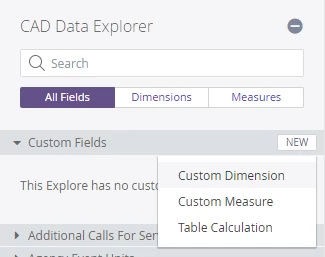
Replace the default name of Calculation 1 with the name Watch and copy/paste the following code:
if(
    extract_hours(${vw_agency_events.event_start_time}) >= 7 AND
    extract_hours(${vw_agency_events.event_start_time}) < 15,
    # If the above comparisons are true, set the watch to:
    "Days",
    if(
      extract_hours(${vw_agency_events.event_start_time}) >= 15 AND
      extract_hours(${vw_agency_events.event_start_time}) < 23,
      # If the above comparisons are true, set the watch to:
      "Evenings",
      # If neither of the above comparison sets are true, set the watch to:
      "Mornings"
    )
)
This will sort CAD events based on the hour of the Event Start Time.
Click the Save button and your new dimension will be added to the DATA area.
Click the Run button to see the results:

We now see the number of CAD events for each of the watch groups we created.