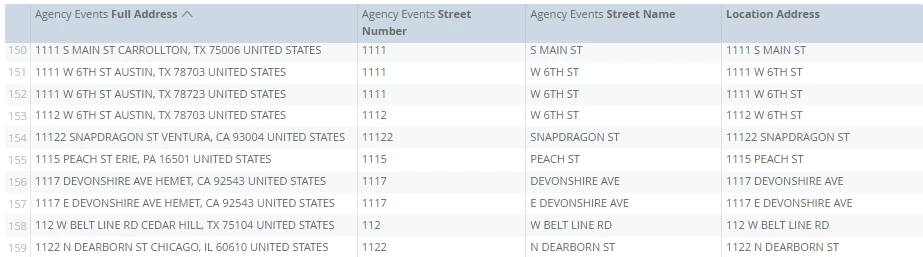



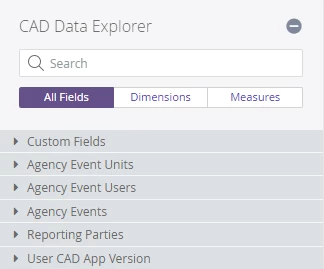
Custom Fields are a very powerful and flexible feature in analytics. You will find Custom Fields as the top category in your Explorers, if it is enabled for your agency. If you don’t see Custom Fields, reach out to Mark43 Support and ask to have Custom Fields enabled in Analytics for you.
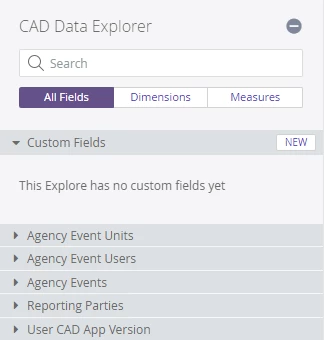
Expand the Custom Fields category by clicking on it. The first time you will see a message reading “This Explore has no custom fields yet”.
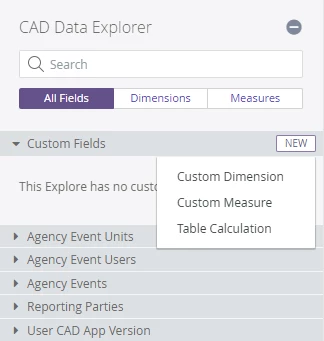
Click the [NEW] button to see the types of fields you can create.
In the following example, you will see Full Address, Street Number, and Street Name displayed.
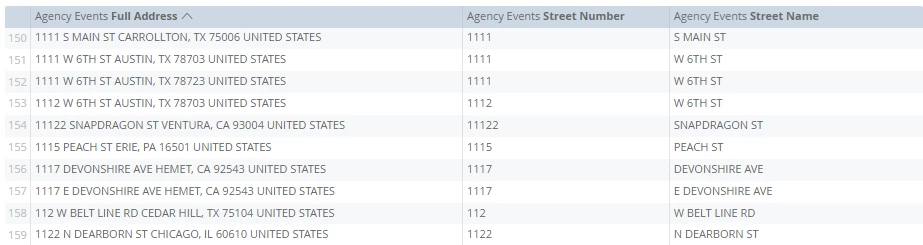
You may want a dimension with just the Street Number and Street Name combined, but without the city, state, postal code, and country information. We can do that with a Custom Dimension.
Click on Custom Fields - NEW - Custom Dimension and enter the following:
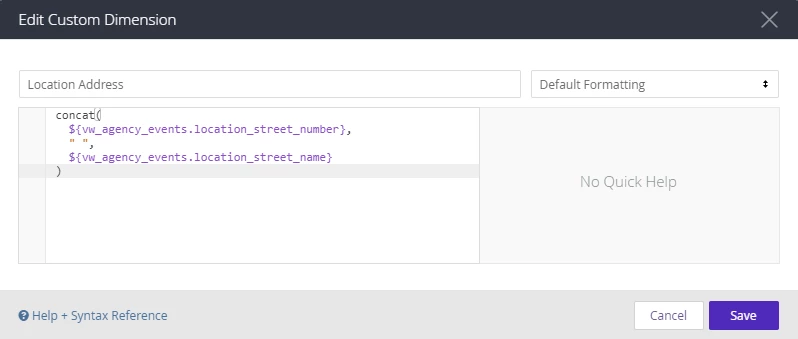
The concat() function allows us to combine strings from other dimensions into our custom dimension. In this case we are combining the Street Number, a space, and the Street Name. When you click [Save] this dimension, named Location Address, will be saved in the Custom Fields category and it will be added to your DATA pane. Click [Run] to see the results.